Showing posts with label E-mail. Show all posts

Friday, 15 November 2013

G-mail is one of the most popular mailing service today. It gives many facilities to it's users. such as


Use Gmail Without Internet Connection (Offline).
Gmail Dot(.) Trick
How to Send Free Sms Using Gmail

In this list now gmail gives one of the greatest facility to its users. Its called as grant access. This means you can give grant access to your gmail account to a friend, without sharing your password. 

Most important thing is in this, other person can't change any setting or password of your gmail account. And also can't chat from your account. This feature only allows the other person to 
read inbox mails, 
can delete read mails, 
and can send mails from your account. 
More than this, particular person can't do any changes in your gmail account. 


How to Grant Access to Others to Your Gmail Account Without Sharing Password

How to active this feature?

Login to your Gmail account

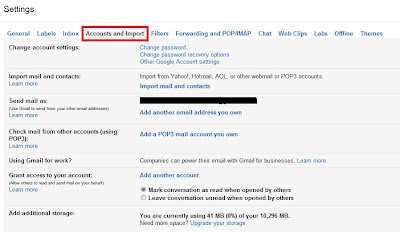
Go to Settings

How to Grant Access to Others to Your Gmail Account Without Sharing Password

In Setting, Click on Account and Import tab

How to Grant Access to Others to Your Gmail Account Without Sharing Password


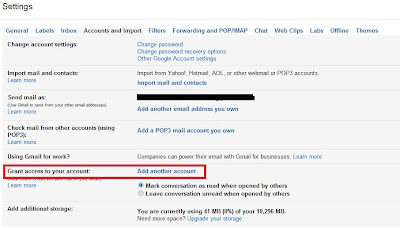
Now go to Grand access to your account section
Then click on Add another account

How to Grant Access to Others to Your Gmail Account Without Sharing Password


Now a pop-up window will appear, in that window type the particular person's email address that you gonna give the access.
Then click on Next

How to Grant Access to Others to Your Gmail Account Without Sharing Password

In the next appearing window click on Send Emails to grant access

How to Grant Access to Others to Your Gmail Account Without Sharing Password

Now particular person will get an email to conform the grant access. He/She should conform the grant access to access your account.


How to conform the grant access?
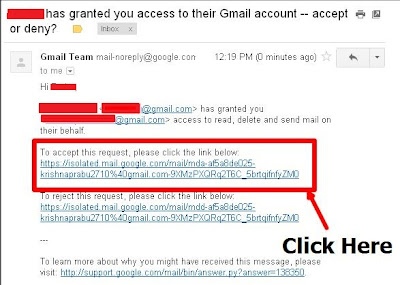
He/She can conform by clicking accept this request link

How to Grant Access to Others to Your Gmail Account Without Sharing Password


That's all, you have done.
After 30 minutes the particular person can log into your Gmail account.


How to login?

The particular person have to login to his/her gmail account and should click on his/her name in the top-right of the window.

Now he/she can see another new email id with the word (delegated), below their email id.

If he/she click on that new email id, they can access to your Gmail account without password require.

Note:
If he/she send an email to anyone from your account, the mail receiver will get the particular person's email id in sent by section. So he/she cannot misuse your email account, you don't need to worry about misuses !!!

How to Grant Access to Others to Your Gmail Account Without Sharing Your Password

Monday, 24 June 2013


Hi all users, today I will show you the easiest method for sending fake mails from any account without entering any password. The best thing is that,The method I am going to use will not show the message like "this is the fake mail" or anything else. It will just deliver your message as you had written.


So get ready to send your first fake mails. Follow the steps below :
 1. Go to emkei.cz
 2. After a second, a dialog box will open. Click on I agree.
 3. Then in the column 'name' and 'from email' column enter your name and email.
 4. In column 'TO' enter the  I'd of the person to whom you want to send the mail.
 5. Now enter subject.
6. Attach a file if any.
7. Leave content-type as text/ plain.
8. Now enter your message in the big column named as text.
9. Enter Captcha verification and click on Send.

 Enjoy.......

SEND FAKE MAIL

Monday, 10 June 2013

E-Mail Icon Generator is a small website utility which creates an image of your email id. You can use this image of your email id on your website, blogs, email, signatures, etc... This will certainly help you avoid unnecessary spam when you are posting your email in public.

Example:


  • E-Mail Icon Generator lets you create a badge with your email address.
  • The icon can be used to link to your email address on web sites, blogs and forums, for example.
  • E-Mail Icon Generator supports Gmail, Yahoo! Mail, Hotmail, AOL address and a few other domains.
  • You can download your own copy or use an icon generated by E-Mail Icon Generator as it is used.
  • Use only the icon (and no mailto: link) to prevent spammers from collecting your address.

  • Check Email Icon Generator here.

    I know this is an old service (Since 23rd June 2005) but it's still running good.

    Monday, 17 December 2012

    How to Shutdown/Lock your computer via Email


    There may be many occasion when you might think to shutdown your PC from a remote location. If same type situation comes to you at any time, don't panic here and there by searching in search engines. Today I am going to tell you a cool and easiest trick to shutdown/lock/logoff/restart your computer just by sending a simple mail. Just read the following steps.

    What you need for this ?

    You need MS Outlook to do this. Because you need to copy-paste some Visual Basic codes in MS Outlook which I am going to give you. If you don't know what is MS Outlook then click here.

    How to do ?
    • Configure your email account in MS Outlook.
    • Then press alt+f11 to open the Visual Basic editor.

      (If the alt+f11 does not work in your case then click on New mail message button to compose a message. Then click on the rounded MS Office button present at the top left. Click on to editor option. A window will open where select the check box Show Developer tab in the ribbon to enable the developer tab. Then in the compose window a tab will come, click on it and then click on Visual Basic to open the editor.)
    • In that editor there will be a button Macro Seurity. Click on it, a window will open. Then click on the radio button No security check for macro.
    • Then open the Project1 present in the left side vertical bar navigator then double click on ThisOutlookSession to view the code. If any thing is previously written there then delete them.
    • Then copy and paste the following code in that visual basic editor.
    Private Declare Function LockWorkStation Lib "user32.dll" () As Long
    Private Sub Application_NewMailEx(ByVal EntryIDCollection As String)
     Dim EntryID
     Dim lastItem
     EntryID = Split(EntryIDCollection, ",")
     For i = 0 To UBound(EntryID)
        Set lastItem = Application.Session.GetItemFromID(EntryID(i))
        If (LCase(lastItem.Subject) = "shutdown") Then
            Call Shell("Shutdown /s")
        End If
        If (LCase(lastItem.Subject) = "logoff") Then
            Call Shell("Shutdown /l")
        End If
        If (LCase(lastItem.Subject) = "restart") Then
            Call Shell("Shutdown /r")
        End If
        If (LCase(lastItem.Subject) = "lock") Then
            a = LockWorkStation()
        End If
     Next
    End Sub
    • Now save the VB Editor and close it and you are done.
    How to send Email ?
    Now you can shutdown/restart/logoff/lock your computer from a remote location by sending a mail. Just send a mail to the email address which you have configured in Outlook. You need to mention either shutdown/logoff/restart/lock in the subject field to do different tasks respectively. The same has been written below.
    •  Write "shutdown" without the quotes in the subject field to shutdown your computer.
    •  Write "logoff" without the quotes in the subject field to logoff your computer.
    •  Write "restart" without the quotes in the subject field to restart your computer.
    •  Write "lock" without the quotes in the subject field to lock your computer.
    Example: Suppose the email which you have configured in Outlook is exampl@gmail.com. Then to shutdown your computer from a remote location, just send a mail from any other email ID as following.

    TO:example@gmail.com
    Subject:shutdown
    Body:You can write anything in the body.

    How to shutdown/logoff/restart/lock your computer Remote via Email

    Saturday, 27 October 2012

    Most of us use Email-service to send data and files to our friends. If we want to send some confidential information to someone such as Bank detail, Credit card numbers, we use E-Mail services. It may not be secure to send directly without any encryption or password protection. This insecure situation gives a big chance to Hackers. If someone hack our mail ID, they can misuse the particular details.


    To avoid this insecure situation you can send confidential information to the particular person through"Lockbin".

    Lockbin provides password protection and AES-256 bit encryption to Emails.


    How to send password protected Emails using Lockbin

    Click here to go Lockbin


    Fill the form (Your name, Password, etc..)


    In the text field, write your confidential information details. If you want you can attach files too.

    How to Send Password Protected E-mails

    Then click on Submit button.

    Now password protected mail will be sent to the particular person, only the particular person will get the link to read your password protected mail.


    How to Send Password Protected E-mails


    If the person click that link it will ask him/her to Enter the password.( Don't forget to send the password to your friend. You can send password through Mobile or normal Email ) 

    Note : Password protected mail stores in Lockbin server itself.

    How to Send Password Protected E-mails

     
    Computer World With IT © 2015 - Designed by Templateism.com